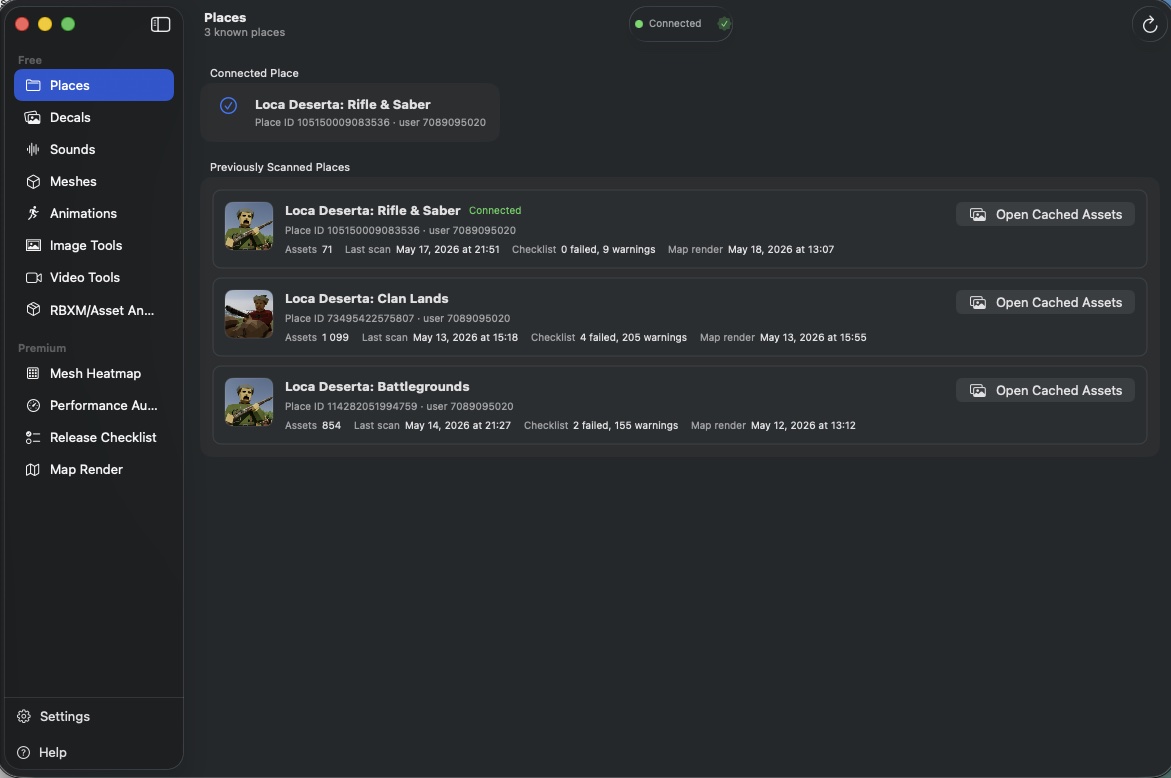
Places is the home screen of GladRoTools. It shows the currently connected Roblox Studio place and a history of every place you have scanned.
The view displays the place name, place ID, user/creator ID, total asset count, last scan date, release checklist status, and latest map render date. Thumbnails are fetched from Roblox and fall back to a map render preview when available.
How to Use
- Open a place in Roblox Studio.
- Make sure the GladRoTools plugin is running (check the connection badge in the toolbar — green means connected).
- The current place appears at the top of the Places list.
- Click Open Cached Assets on any previously scanned place to browse its asset library offline.
Help & Tips
- Offline browsing: Once a place is scanned, its asset metadata is cached locally. You can browse decals, sounds, meshes, and animations from that place even when Studio is not running.
- Thumbnail fallback: If Roblox does not return a place thumbnail, the app shows a map render preview instead (if you have run Map Render on that place).
- Release summary at a glance: The release checklist status badge lets you see whether a place passed its last pre-release check without opening the tool.
FAQ
Does Places sync with Roblox servers?
No. Places reads data from your local cache and Roblox’s API (for thumbnails). Nothing is uploaded automatically.
Can I delete a place from the history?
Yes — right-click a place row and choose Remove from Registry. This only deletes the local record and cached assets; it does not affect the actual Roblox place.
Why does my place show zero assets?
The plugin may not have completed a scan. Make sure the bridge connection is active and trigger a scan from any asset browser view (Decals, Sounds, etc.).