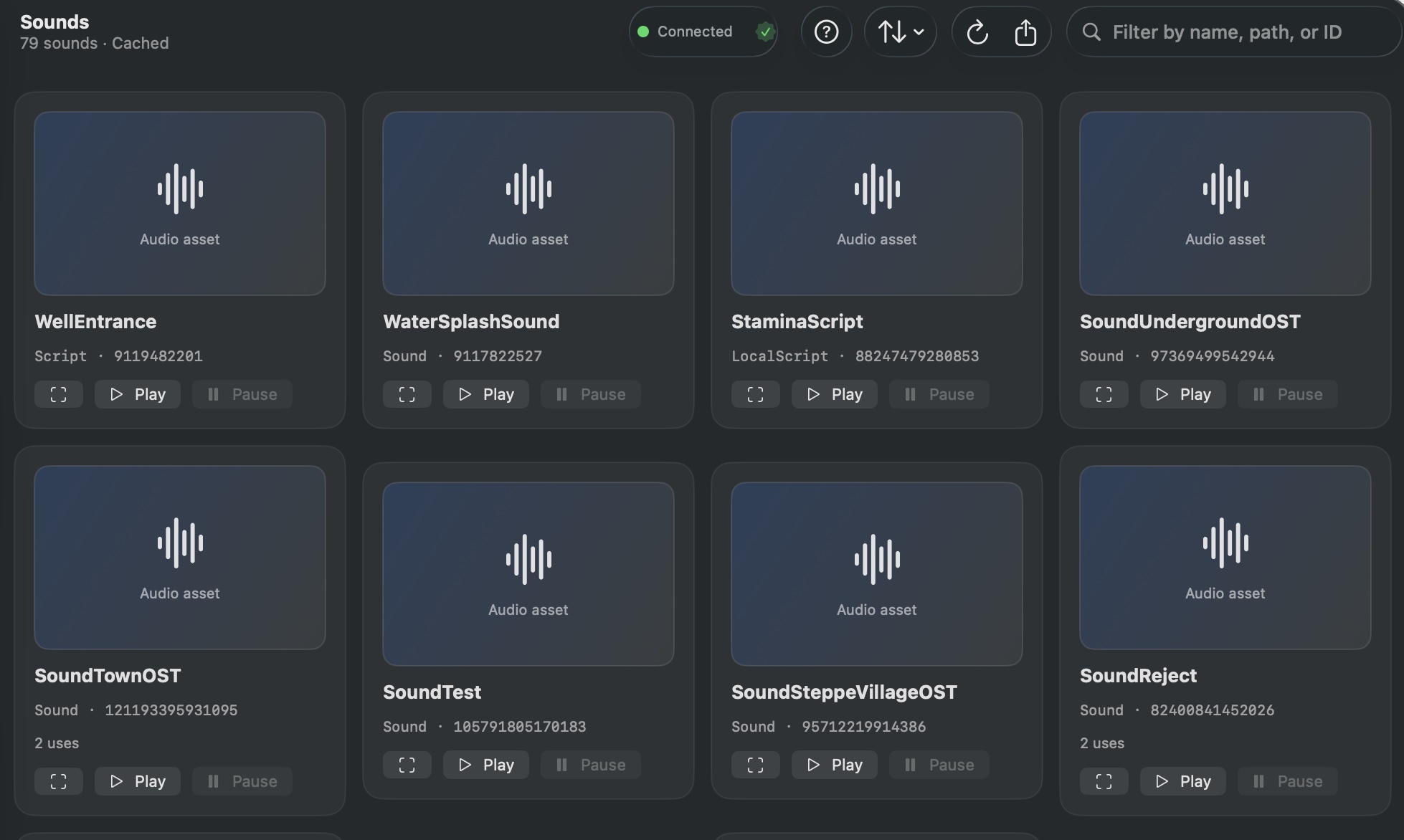
Sounds browses every Sound.SoundId reference in your place. Each sound card includes an in-app audio player so you can preview sounds without leaving the app. A waveform visualization gives you a quick visual read of each audio clip.
How to Use
- Click Sounds in the sidebar.
- Browse the list — each card shows the audio waveform, asset name, ID, and reference count.
- Click Play on any sound card to preview it in-app.
- If the format is not natively playable, the app runs FFmpeg automatically to convert it for preview.
- Filter and sort by name, byte size, creator, or instance count.
- Click a sound to open the Detail sheet with full metadata and asset links.
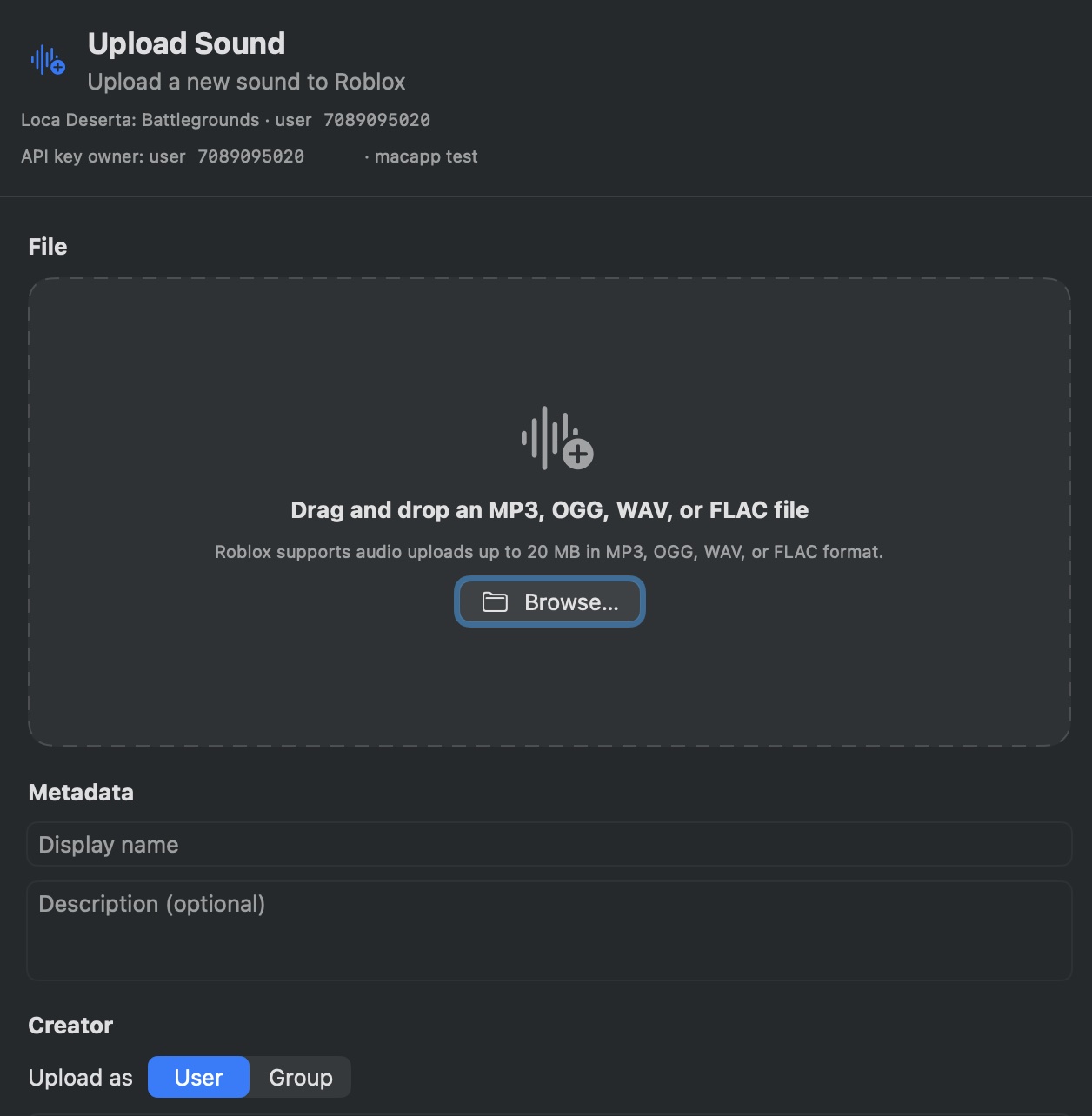
- Use Upload to push a new sound file from your Mac to Roblox.
Download Sounds from Assets
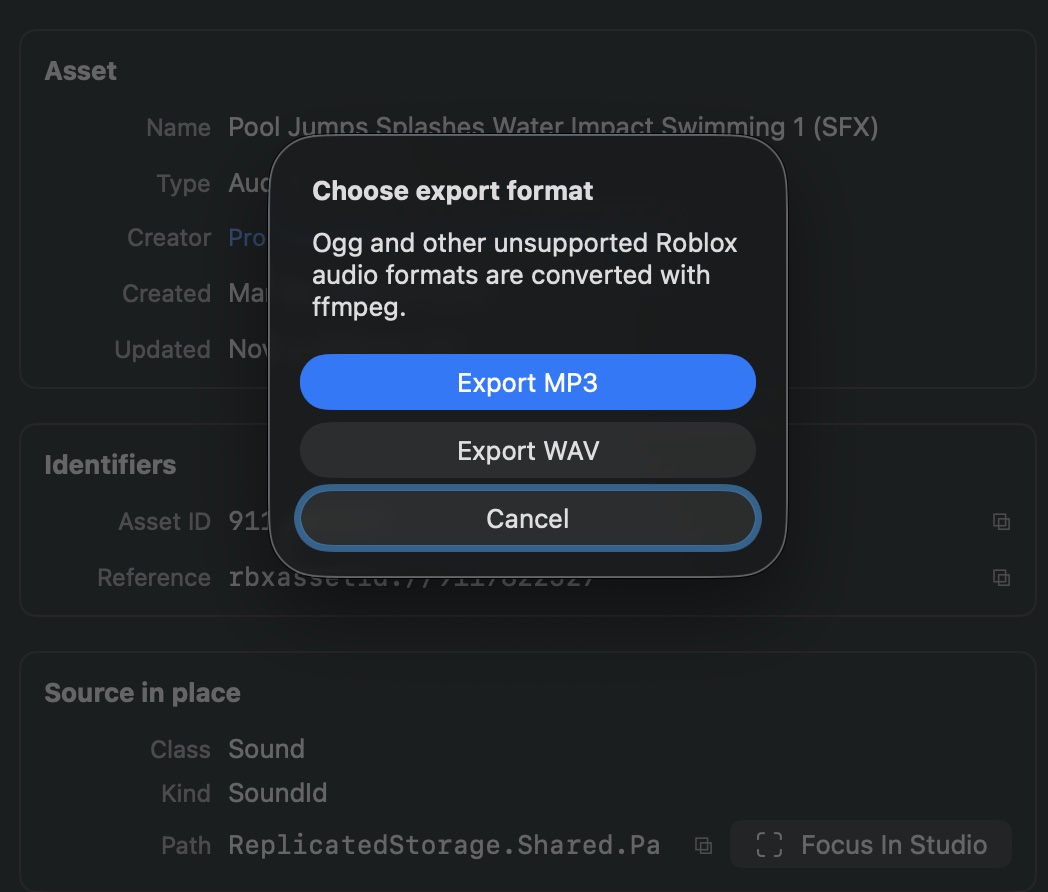
You can download sounds from the Sound details popup. Choose WAV or MP3:
FAQ
Why won’t a sound play?
The asset might be inaccessible (private, moderated, or deleted). Check that the asset ID is valid and that you are signed in with Roblox.
Can I export sounds from my place?
The Detail sheet lets you open the asset URL in Safari, where you can download the original file through Roblox’s website.
Does GladRoTools show sound length/duration?
Yes. The Detail sheet displays the duration in seconds after the audio is downloaded and decoded.