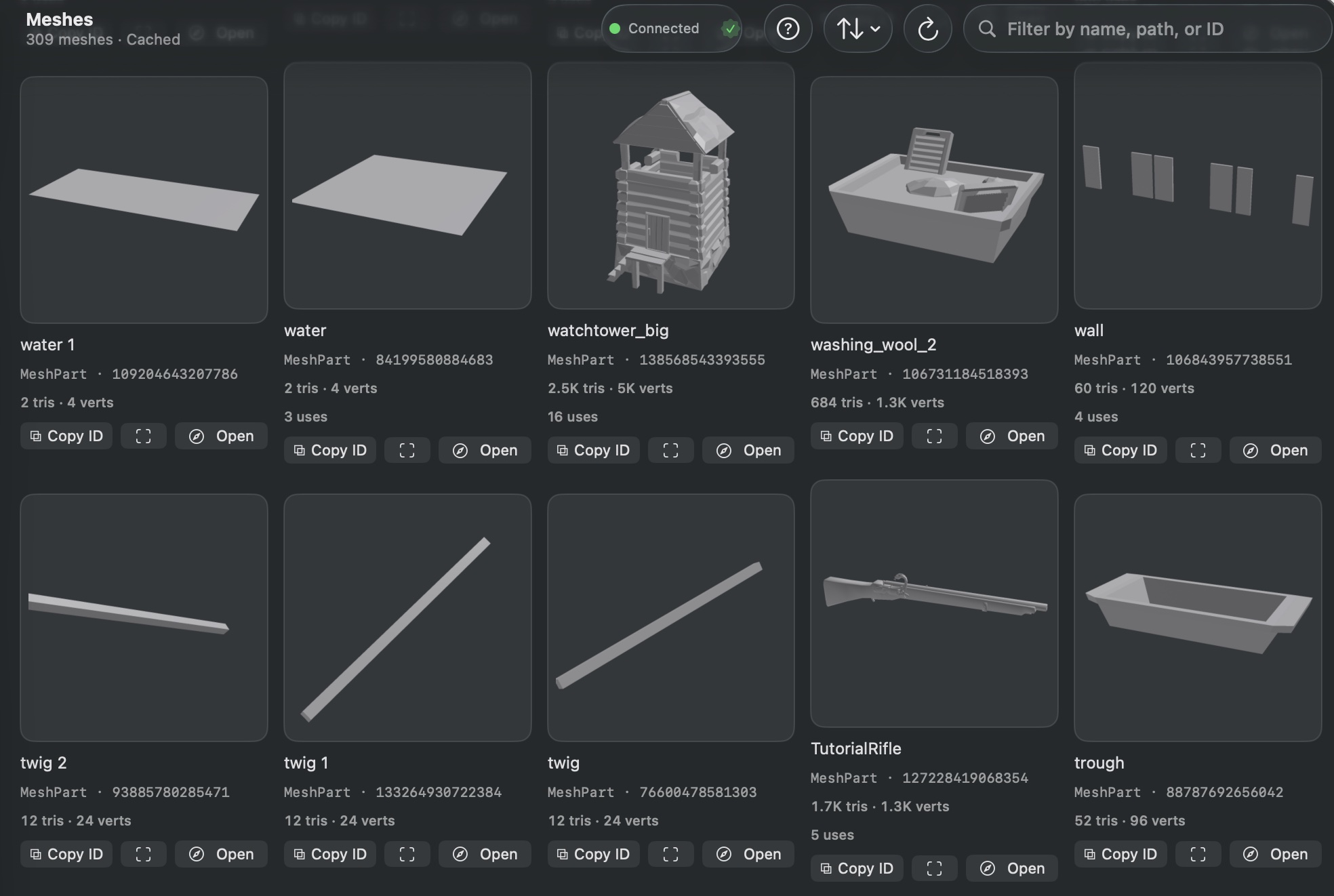
Meshes browses every mesh asset in your place — MeshPart.MeshId, SpecialMesh.MeshId, and FileMesh.MeshId references.
For each mesh, you see a thumbnail preview, triangle count, vertex count, and how many instances reference it. Geometry stats are fetched from Roblox when you sign in with your Roblox account.
How to Use
- Click Meshes in the sidebar.
- Browse the list with thumbnails and geometry stats.
- Sort by name, triangle count, creator, or instance count.
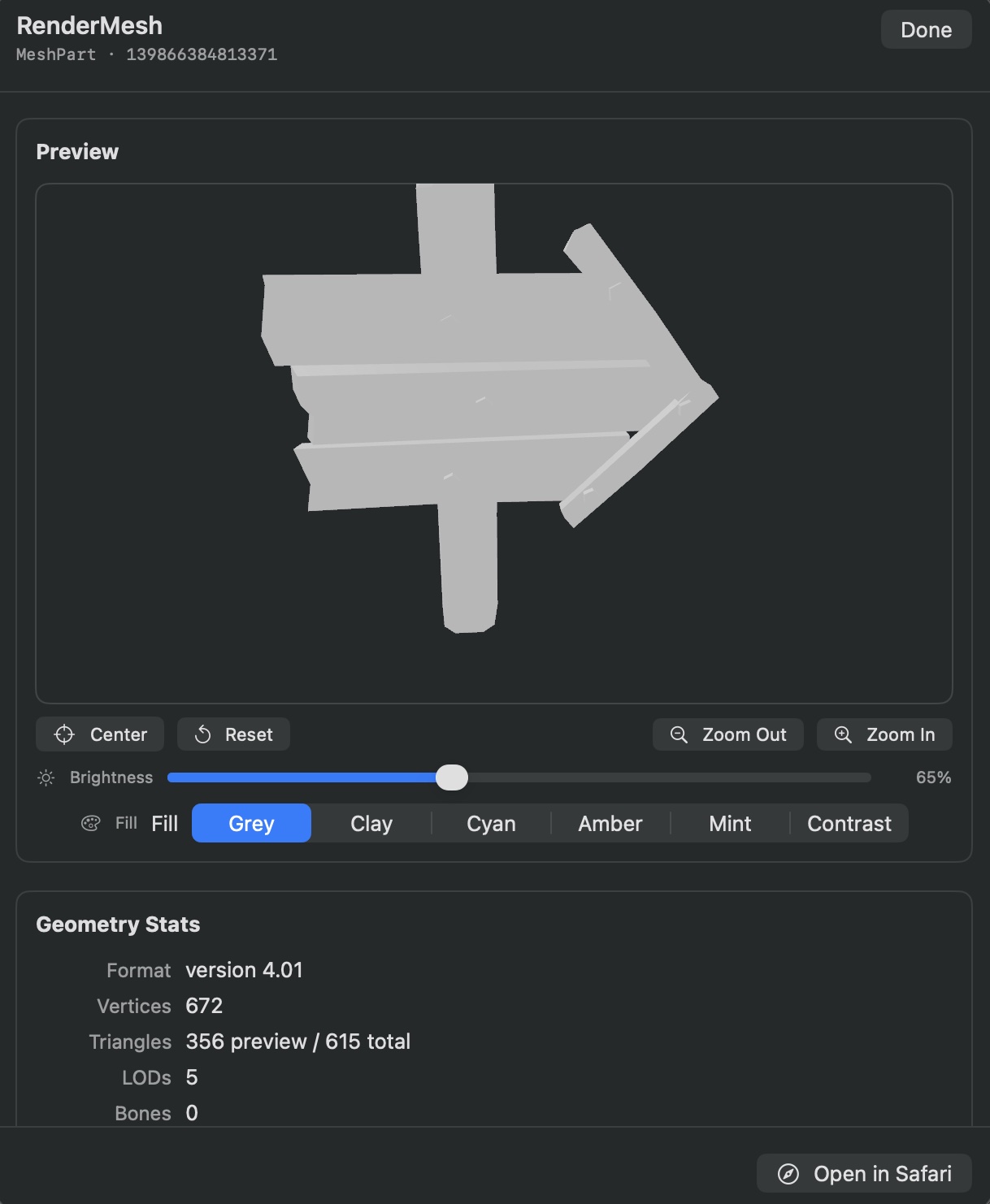
- Click a mesh to open the Detail sheet:
- Full triangle and vertex counts.
- Focus in Studio to locate the mesh.
- Open in Safari to view on Roblox.
Help & Tips
- Triangle budget: Pay attention to high triangle counts. A single mesh with 50k+ triangles can drag down mobile performance. Use the Performance Audit tool to catch these.
- Unresolved meshes: If triangle data shows “N/A,” the mesh may be private, moderated, or not accessible through Roblox’s API.
- Draco-encoded meshes: The app bundles the Draco decoder for previewing compressed mesh geometry.
FAQ
Why do some meshes show 0 triangles?
The Roblox API could not fetch geometry for that asset. Sign in with Roblox and check that the asset is public or owned by you.
Can I see where each mesh is placed in the world?
Yes — click Focus in Studio in the Detail sheet. You can also use the Mesh Heatmap tool to see density hotspots of triangle-heavy meshes across your map.
Does the app support mesh replacement?
Not directly. Use Focus in Studio to find instances, then replace them manually or with Roblox’s asset swap tools. This is the limitation of the Roblox Studio Security that does not allows changing mesh IDs from plugins.