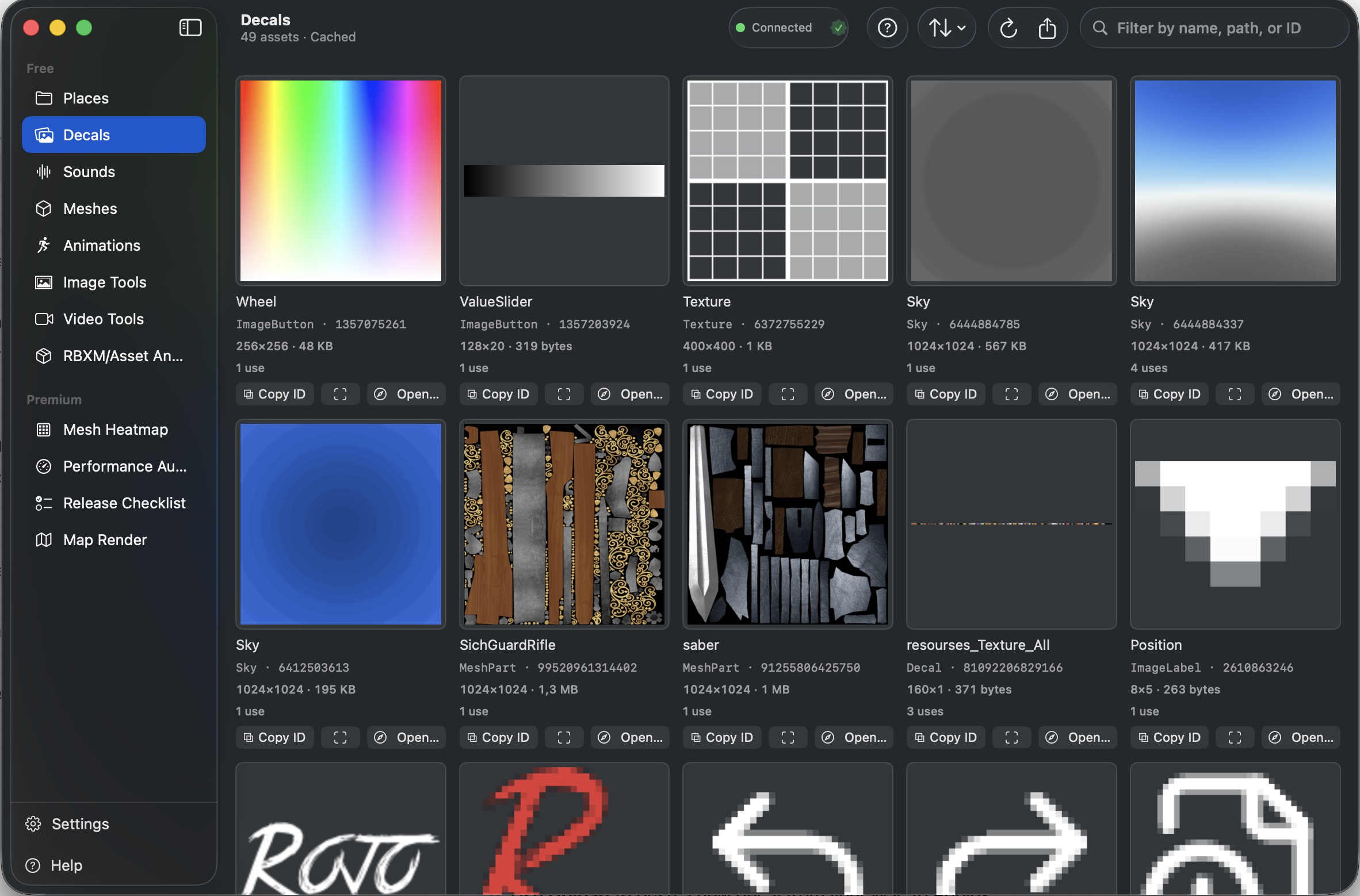
Decals browses every image-based asset in your Roblox place. This includes Decal, ImageLabel, Texture, and ParticleEmitter texture references.
For each asset, you see a thumbnail preview, asset ID, name, reference count (how many instances use it), and dimensions in pixels and bytes. The grid view makes it easy to scan large asset libraries visually.
How to Use
- Connect GladRoTools to Roblox Studio.
- Click Decals in the sidebar.
- Use the search bar to filter by name, path, or asset ID.
- Sort by name, byte size, last modified, creator, or instance count.
- Click any decal to open the Detail sheet:
- View full metadata (dimensions, asset ID, creator).
- Click Focus in Studio to select the asset in Studio’s Explorer.
- Click Open in Safari to view the asset on the Roblox website.
- Copy the asset ID to your clipboard.
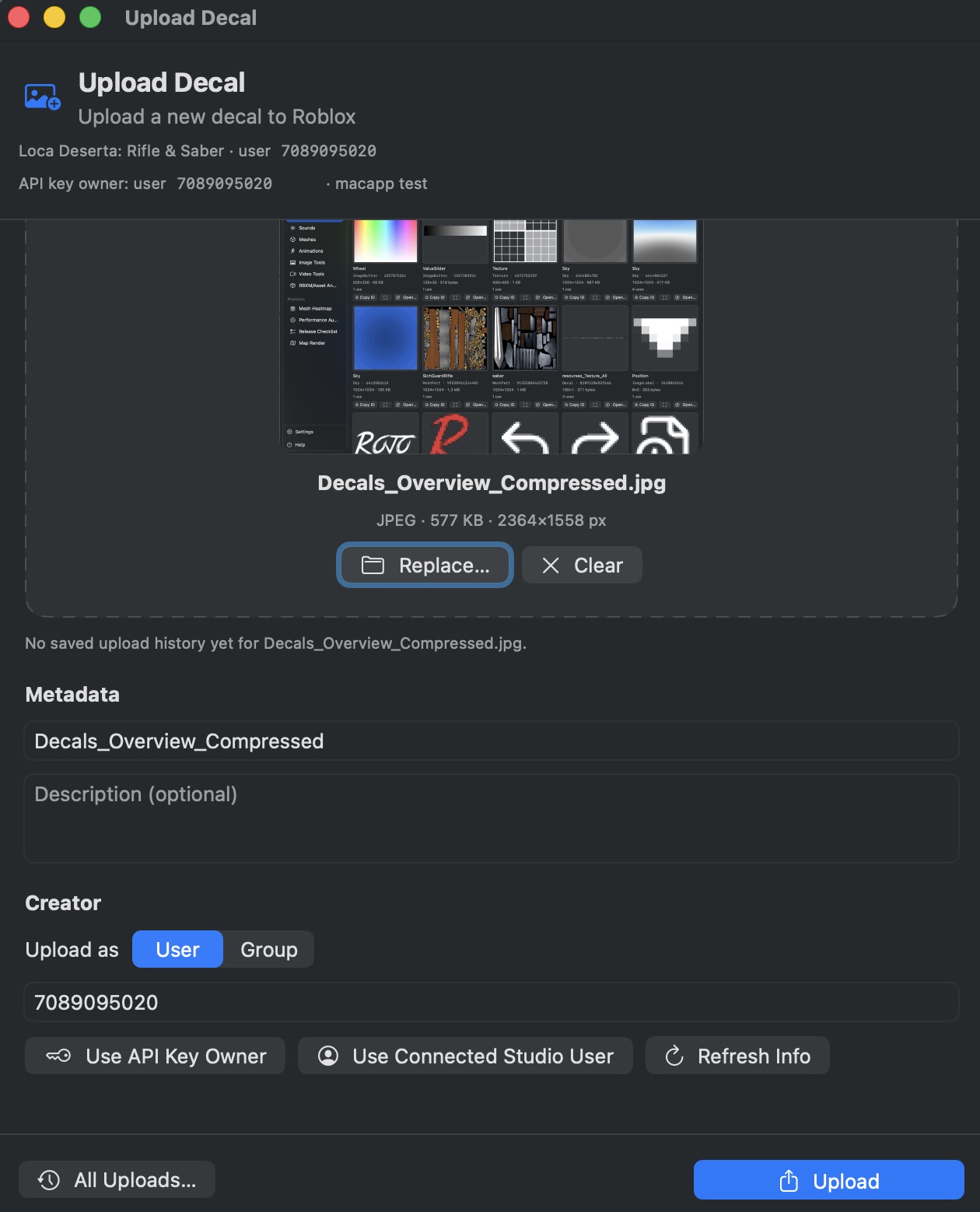
- Use Upload to push a new decal from your Mac to Roblox.
Help & Tips
- Performance note: Thumbnails are loaded on-demand and cached locally. Scrolling through hundreds of decals is smooth because images are loaded asynchronously.
- Reference count: A high reference count means that asset is used by many instances — changing or deleting it will have broad impact.
- Upload formats: Accepted image formats for upload include PNG, JPEG, and BMP.
FAQ
Why are some thumbnails missing?
The Roblox CDN may not have a thumbnail for every asset ID. The app shows a placeholder when the thumbnail is unavailable.
Can I replace a decal in bulk?
Not directly. Use the reference count and Focus in Studio to manually replace instances, or use Roblox’s built-in bulk asset replacement tools.
Does the app track decal dependencies?
Yes. The Detail sheet shows how many instances reference this decal, and the asset library tracks which assets are used by which instances.