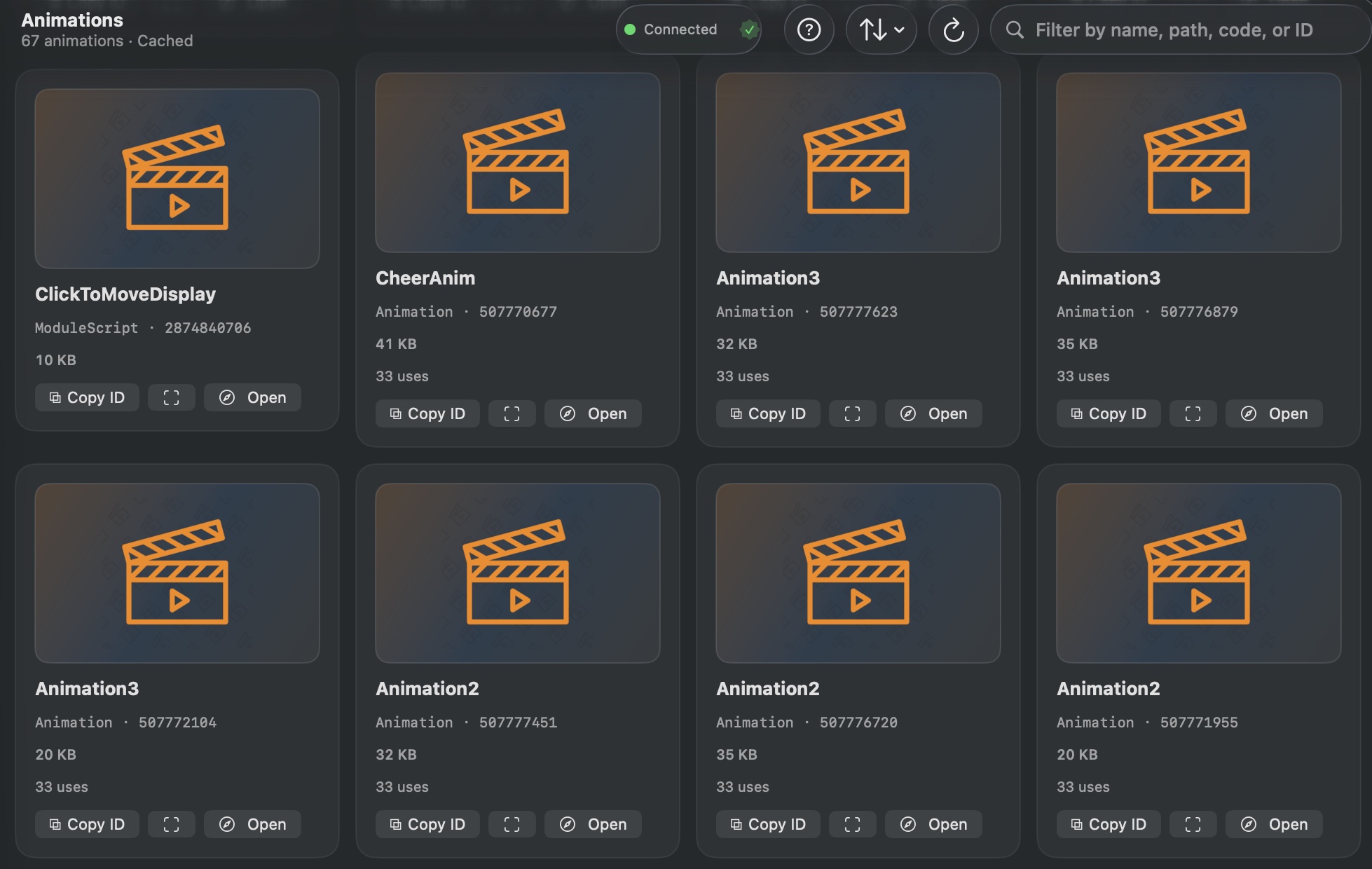
Animations browses every Animation.AnimationId reference and runtime animation ID in your place. Each animation shows a thumbnail preview (with colorful gradient fallbacks), byte size, and reference count.
How to Use
- Click Animations in the sidebar.
- Browse the list of animations found in your place.
- Sort by name, byte size, creator, or instance count.
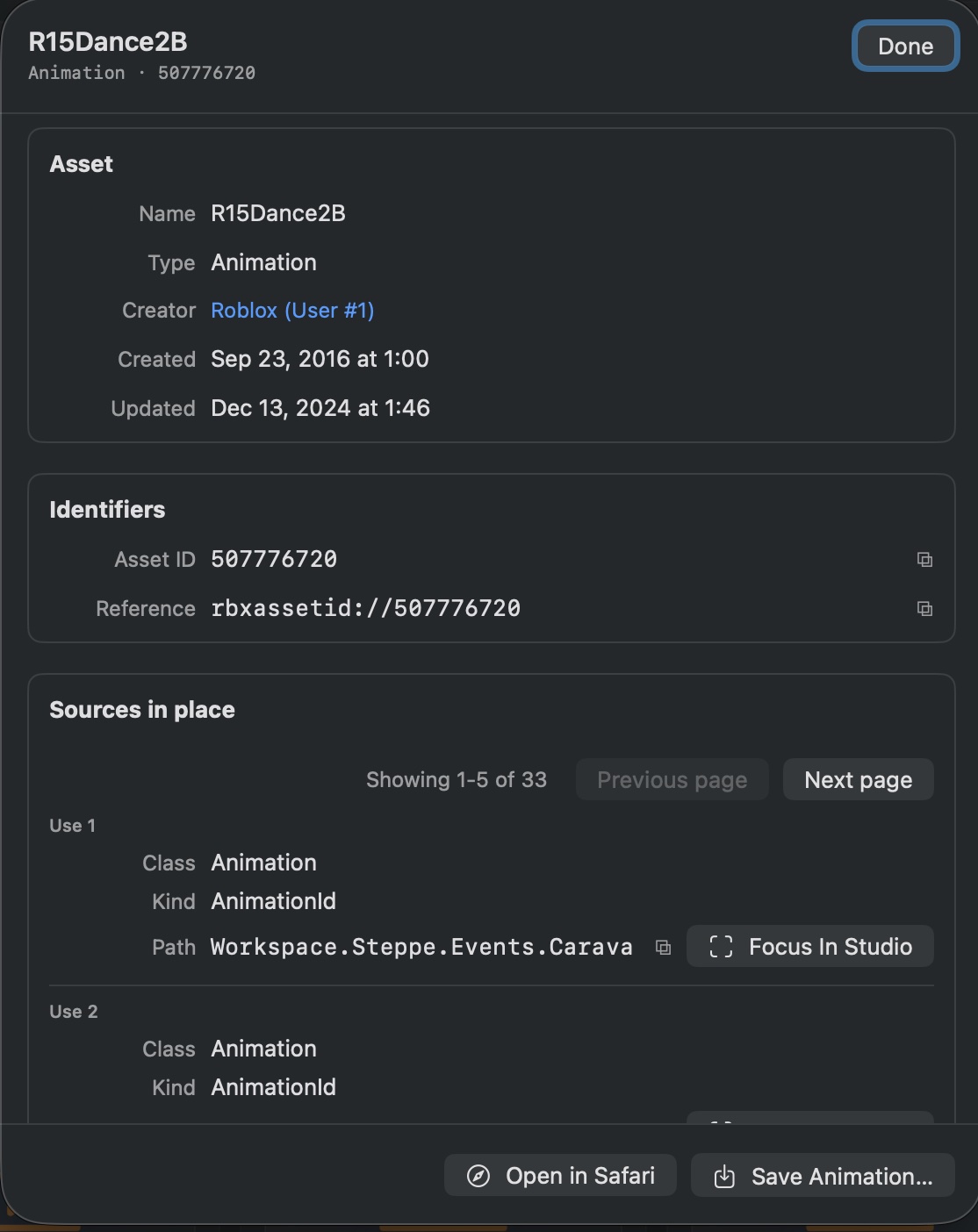
- Click any animation to open the Detail sheet with full metadata.
- Use Save Animation button to save it as rbxm file.
Help & Tips
- Gradient fallbacks: When Roblox does not provide an animation thumbnail, the app generates a colorful gradient placeholder that is unique per asset ID.
- Byte size matters: Animations are often among the largest assets in a place. Sort by size to find the heaviest ones and consider whether they are worth keeping.
FAQ
Can I preview an animation in GladRoTools?
The app shows metadata, thumbnails, and byte sizes. To actually play an animation, use Roblox Studio’s Animation Editor.
Why are some animation IDs listed without names?
Some animation references may be set at runtime via scripts. The app reports the raw asset ID in these cases.
How do I find unused animations?
Use the reference count. If an animation has 0 instances referencing it, it may be orphaned in your asset library. Check whether scripts reference it at runtime before deleting.