---
title: "Performance Audit — Scored Place Analysis (Premium)"
url: https://dmytrogladkyi.com/GladRoTools/performance-audit/
date: 2026-05-11
author: Dmytro Gladkyi
tags: ["gladrotools","roblox","macos","premium"]
description: "Run scored Roblox place performance audits for texture memory, mesh complexity, scripts, audio, particles, and release risks."
---
**Performance Audit** gives your place a performance score from 0–100 based on configurable budget presets. It scans across ten issue categories — texture memory, mesh complexity, audio size, duplicate content, script patterns, streaming settings, particle rates, physics objects, and more — and shows you exactly what is dragging your score down.
---
## How to Use
1. Click **Performance Audit** in the sidebar (requires [GladRoTools Pro](https://dmytrogladkyi.com/GladRoTools/subscription/)).
2. Choose a **Budget Preset:**
| Preset | Max Image | Texture Memory | Audio Size | Mesh Tris | Instance Limit |
|--------|-----------|----------------|------------|-----------|----------------|
| **Mobile First** | 512 px | 4 MB | 256 KB | 5,000 | 20,000 |
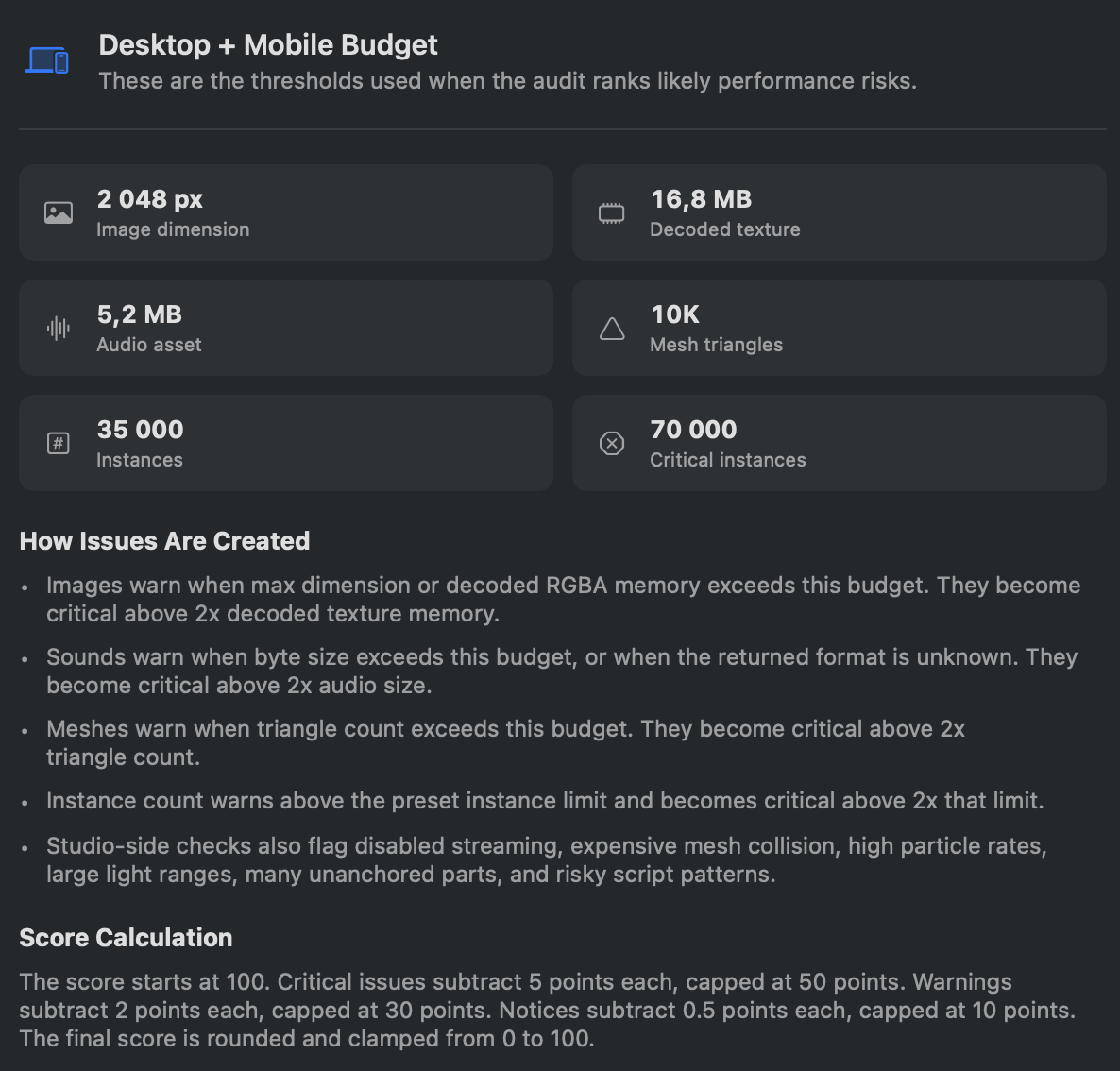
| **Desktop + Mobile** | 1024 px | 8 MB | 512 KB | 10,000 | 50,000 |
| **Desktop Only** | 2048 px | 16 MB | 1 MB | 20,000 | 100,000 |
3. Click **Run Audit** (uses the latest scan) or **Scan & Run** (forces a fresh Studio scan first).
4. Review the score and issue list:
- Issues grouped by category with severity: **Critical**, **Warning**, **Notice**.
- Each issue links to the offending asset or instance.
- **One-click fixes** for some issue types (e.g., set particle emission rate directly from the app).
5. **Export** results as Markdown or PDF.
6. View **History** to compare audit scores across runs.
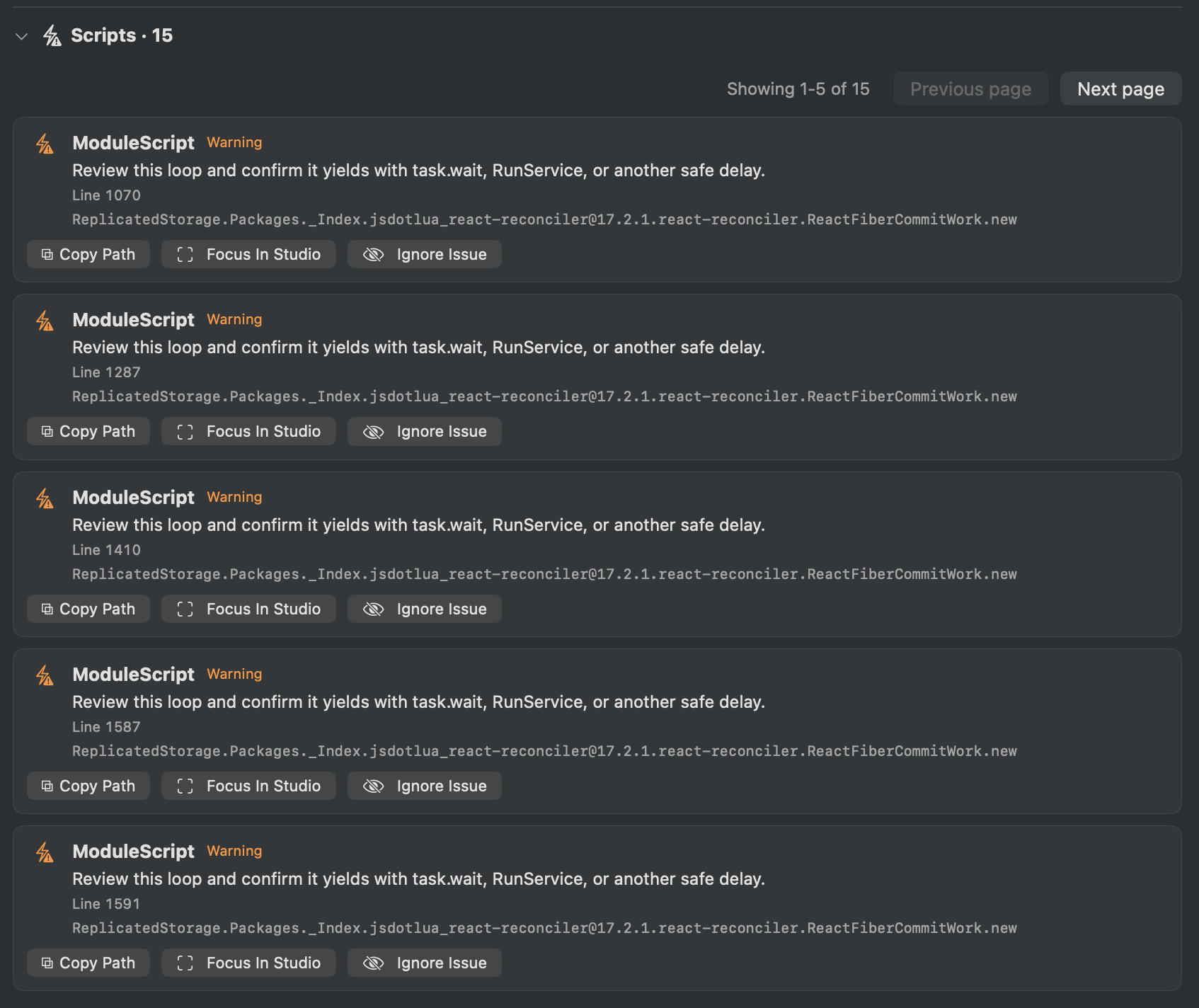
7. Check performance issues in the scripts.
---
## Help & Tips
- **Run often:** Run an audit after every major asset import or level design session. Catching issues early is far cheaper than fixing them before release.
- **Ignore known issues:** Use the per-place exclusion list so known-but-acceptable issues do not drag down your score.
- **Mobile First is strict:** The Mobile First preset is unforgiving by design. A score of 80+ on Mobile First means your place will run well on most phones.
- **One-click fixes:** For particle emission rate violations, the app can set the correct `Rate` property in Studio directly — no manual hunting required.
---
## FAQ
### What is a "good" score?
Aim for 80+ on your target preset. A score below 60 on Mobile First deserves attention before release.
### Can I customize the budget thresholds?
The presets use fixed thresholds. Custom budgets are planned for a future update.
### How is the score calculated?
Each issue category contributes points to the total. Critical issues deduct more than Warnings or Notices. The formula is weighted toward memory and rendering costs.
### Does Performance Audit require Roblox Sign In?
Some checks (like duplicate content detection via byte comparison) require signing in with Roblox to download asset bytes. Most checks work with scan data alone.
 ---
## How to Use
1. Click **Performance Audit** in the sidebar (requires [GladRoTools Pro](https://dmytrogladkyi.com/GladRoTools/subscription/)).
2. Choose a **Budget Preset:**
| Preset | Max Image | Texture Memory | Audio Size | Mesh Tris | Instance Limit |
|--------|-----------|----------------|------------|-----------|----------------|
| **Mobile First** | 512 px | 4 MB | 256 KB | 5,000 | 20,000 |
| **Desktop + Mobile** | 1024 px | 8 MB | 512 KB | 10,000 | 50,000 |
| **Desktop Only** | 2048 px | 16 MB | 1 MB | 20,000 | 100,000 |
3. Click **Run Audit** (uses the latest scan) or **Scan & Run** (forces a fresh Studio scan first).
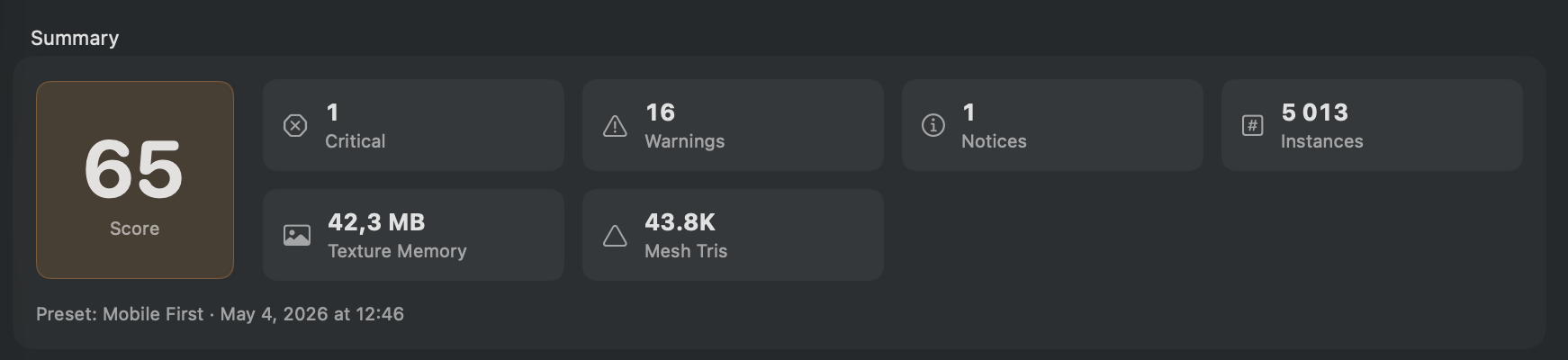
4. Review the score and issue list:
- Issues grouped by category with severity: **Critical**, **Warning**, **Notice**.
 - Each issue links to the offending asset or instance.
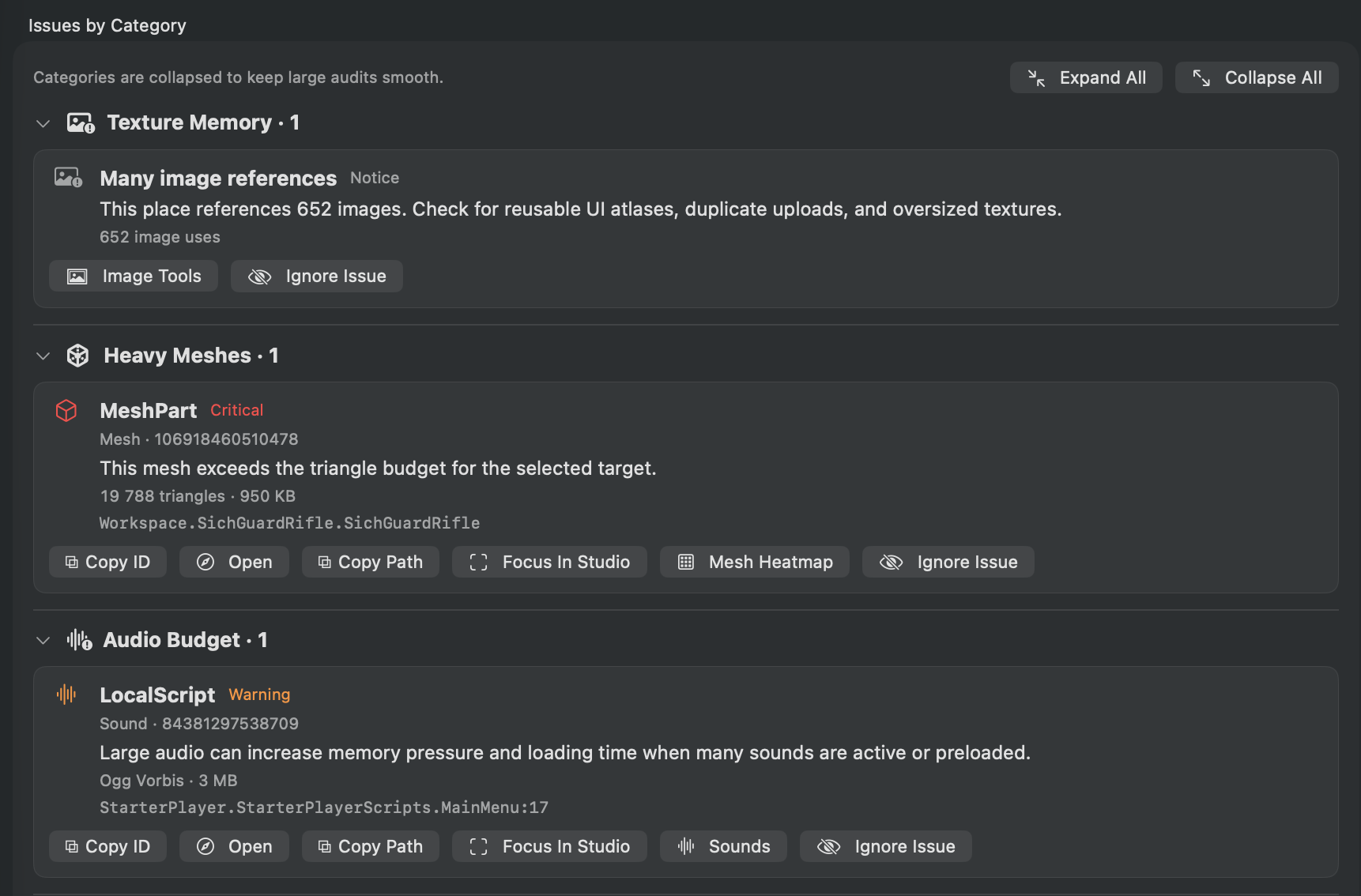 - **One-click fixes** for some issue types (e.g., set particle emission rate directly from the app).
5. **Export** results as Markdown or PDF.
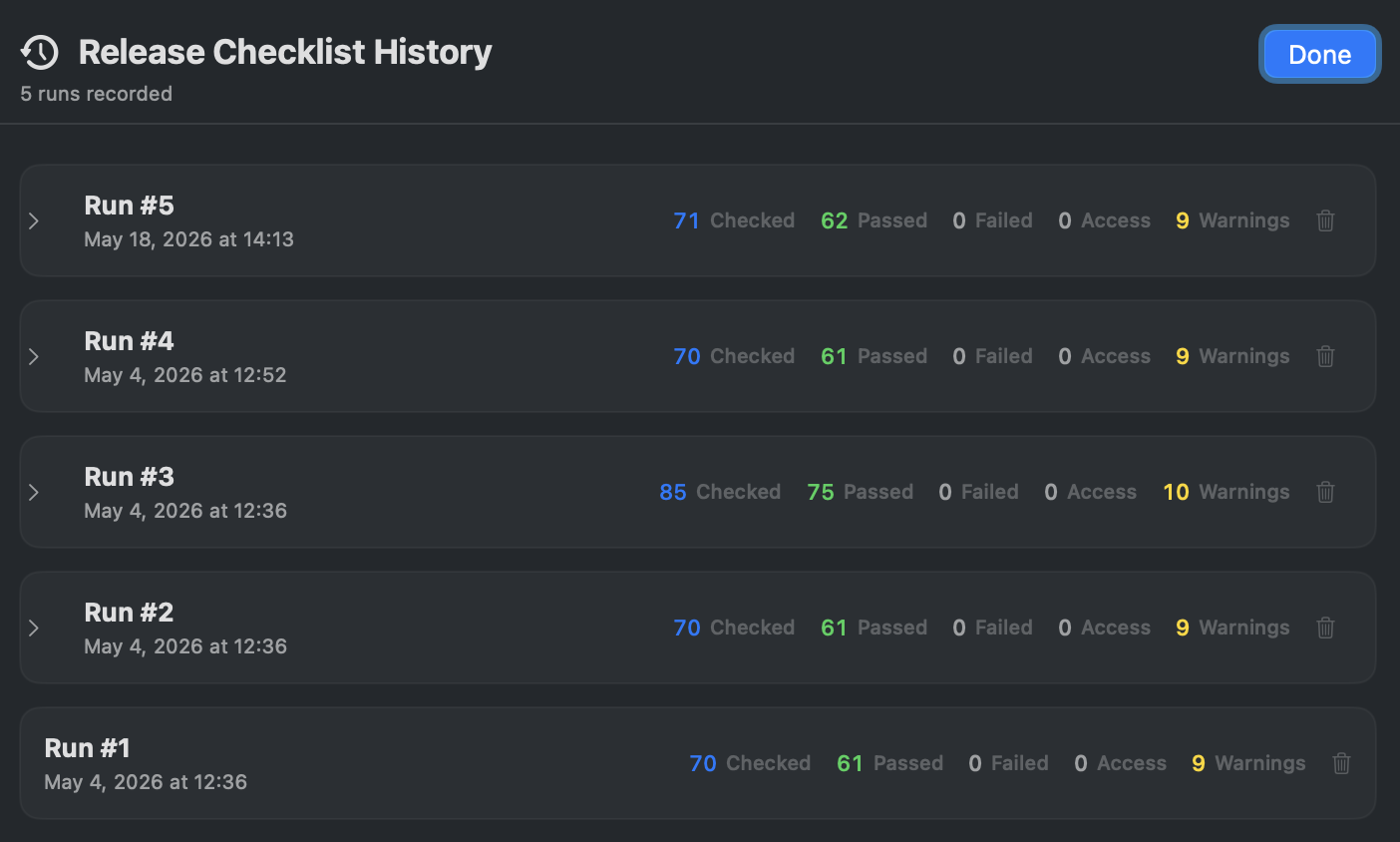
6. View **History** to compare audit scores across runs.
 7. Check performance issues in the scripts.
 ---
## Help & Tips
- **Run often:** Run an audit after every major asset import or level design session. Catching issues early is far cheaper than fixing them before release.
- **Ignore known issues:** Use the per-place exclusion list so known-but-acceptable issues do not drag down your score.
- **Mobile First is strict:** The Mobile First preset is unforgiving by design. A score of 80+ on Mobile First means your place will run well on most phones.
- **One-click fixes:** For particle emission rate violations, the app can set the correct `Rate` property in Studio directly — no manual hunting required.
---
## FAQ
### What is a "good" score?
Aim for 80+ on your target preset. A score below 60 on Mobile First deserves attention before release.
### Can I customize the budget thresholds?
The presets use fixed thresholds. Custom budgets are planned for a future update.
### How is the score calculated?
Each issue category contributes points to the total. Critical issues deduct more than Warnings or Notices. The formula is weighted toward memory and rendering costs.
### Does Performance Audit require Roblox Sign In?
Some checks (like duplicate content detection via byte comparison) require signing in with Roblox to download asset bytes. Most checks work with scan data alone.